 by
by WhatsApp is one of the most popular messaging applications in the world, and many people use it every day to chat with friends, family members, colleagues, and customers. Although WhatsApp provides several customization options, many users want something more unique: they want to set their own photo as the background of the WhatsApp main home screen or chat list.
Normally, WhatsApp allows you to change the wallpaper inside individual chats. However, changing the main WhatsApp home screen background, where your conversations and contacts appear, is different. The official WhatsApp application may not provide a direct setting for this type of customization on every version or device.
Fortunately, some Android customization apps and tools can create a similar personalized effect. In this detailed guide, we will explain how to put your own photo on the WhatsApp home screen background, what type of app may be required, how to configure it, and what precautions you should take.
What Is a WhatsApp Home Screen Background?
Before starting, it is important to understand the difference between a WhatsApp chat wallpaper and a WhatsApp home screen background.
A chat wallpaper appears behind your messages when you open a conversation. WhatsApp officially allows users to customize this wallpaper.
The WhatsApp home screen, on the other hand, is the main screen where you normally see sections such as Chats, Updates, Communities/Meta AI, Calls, and your profile area, depending on your WhatsApp version.
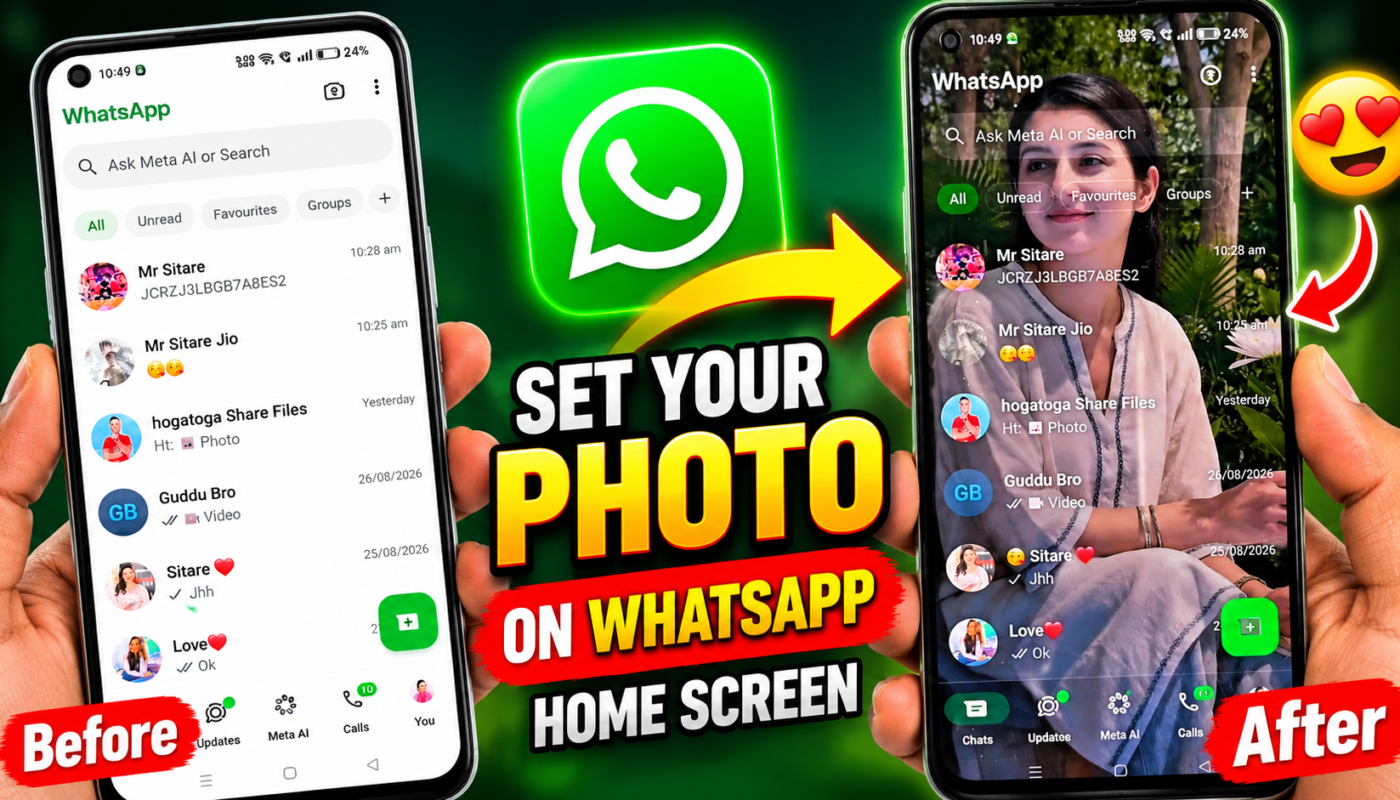
Some users want their personal photo to appear behind this entire interface so that the chat list becomes partially transparent and their selected picture can be seen in the background.
This creates a much more personalized and attractive WhatsApp appearance.
Can You Put Your Photo on the WhatsApp Home Screen?
WhatsApp’s standard customization options primarily focus on chat themes and wallpapers rather than allowing a personal photograph to replace the entire main chat-list interface.
If you have seen a video where someone’s photo appears behind the complete WhatsApp home screen, it may have been created using an additional customization application, an overlay/theme tool, or a modified interface.
The exact method can vary depending on the Android phone, Android version, WhatsApp version, and the third-party app being used.
You should therefore be careful with apps claiming to completely modify WhatsApp.
App Required for WhatsApp Background Customization
You may find Android apps described with names or search terms such as:
WhatsApp Transparent Wallpaper, Transparent Screen, Live Transparent Wallpaper, or WhatsApp Background Changer.
The exact app used in a particular viral video can vary, so you should verify the app before installing it rather than downloading an unknown APK simply because its name looks similar.
A safer approach is to use apps available through trusted app stores and carefully check their developer information, reviews, permissions, and privacy details.
How to Set Your Photo as WhatsApp Home Screen Background
The exact buttons can differ between apps, but the general procedure is usually similar.
First, download and install a reputable transparent wallpaper or screen customization application on your Android device.
Open the application after installation. It may ask for certain permissions that are necessary for its features. Read each permission carefully before allowing it.
Look for an option such as Custom Background, Choose Photo, Select Image, Gallery, or Background Image.
Tap the option and select the photo you want to use from your phone’s gallery.
For the best result, choose a portrait image that matches the dimensions of your smartphone screen. A vertical photo generally works better than a horizontal image.
After selecting your image, adjust its position and crop it so that the important part of the photograph remains visible.
Some customization apps also provide an opacity or transparency setting. Adjusting this setting can make WhatsApp text, contact names, icons, and messages easier to read.
Apply or activate the effect according to the instructions provided by the app.
Now open WhatsApp and check whether the desired background effect appears.
How to Choose the Best Photo
Choosing the correct picture is important because WhatsApp contains a lot of text and interface elements.
A photograph with an extremely bright or complicated background can make contact names and other information difficult to read.
Try using a photo with a relatively clean background. Portrait photographs usually work particularly well because they can fill a vertical smartphone display.
If the application provides brightness, blur, darkness, or transparency controls, experiment with them until the WhatsApp interface remains clearly readable.
How to Set a Normal WhatsApp Chat Wallpaper
If you only want your photo behind the messages inside a chat, you usually do not need a third-party customization app.
Open WhatsApp and enter the relevant chat or WhatsApp’s chat/theme settings. Look for the Chat Theme or Wallpaper option available in your version of WhatsApp.
Choose a photo from your gallery, adjust it, and apply the wallpaper.
This is different from changing the complete WhatsApp home-screen/chat-list background.
WhatsApp Chat Wallpaper vs Home Screen Background
These two features are often confused in social-media tutorials.
Chat Wallpaper: This changes the background displayed behind messages in a conversation and can be handled through WhatsApp’s supported customization options.
Home Screen Background: This refers to placing an image behind the main WhatsApp conversation list/interface. If your WhatsApp version doesn’t offer this feature, achieving the appearance generally requires something outside WhatsApp itself.
That distinction is important when searching for tutorials or applications.
Why Doesn’t My Background Appear?
If you follow a tutorial but the effect does not work, several things could be responsible.
Your Android version may restrict overlays or background customization. The app may also require a permission that has not been enabled.
Another common reason is a WhatsApp update. Third-party customization applications sometimes stop working correctly when WhatsApp changes its interface.
Restarting WhatsApp or your phone may solve simple temporary problems, but you should not disable important Android security features merely to make a customization app work.
Important Security Warning
Be especially careful when downloading applications advertised as WhatsApp themes, transparent WhatsApp, WhatsApp mods, or WhatsApp customization APKs.
Avoid an application if it unnecessarily asks for your WhatsApp verification code, SMS access, contacts, accessibility control, passwords, or other sensitive information unrelated to its function.
You should also avoid unofficial modified WhatsApp clients if protecting your chats and account is important.
Never enter your WhatsApp OTP or verification code into an unknown third-party application.
How to Make the Background Look Professional
A good WhatsApp background should look attractive without making the interface difficult to use.
Use a high-resolution vertical photograph and keep the main subject around the center of the screen. If the background is too bright, reduce its brightness or increase the interface contrast where the customization app permits it.
You can also use a slightly blurred photograph. This allows your picture to remain visible while keeping chat names and interface elements readable.
For personal portraits, avoid placing important facial details directly behind areas containing lots of text.
Does This Work on Every Android Phone?
Not necessarily.
Android manufacturers customize their operating systems differently. A method that works perfectly on one Samsung, Xiaomi, Infinix, Tecno, Oppo, Vivo, or Realme phone may behave differently on another device.
Compatibility can also change after an Android or WhatsApp update.
Therefore, always check whether the particular customization app supports your phone and current Android version.
Does It Work on iPhone?
iPhones generally provide much tighter restrictions on applications changing the appearance of other applications.
You can customize supported wallpapers and themes inside WhatsApp, but an Android-style third-party overlay or interface customization method may not be available on iOS.
Be particularly skeptical of websites claiming that installing an unknown configuration profile will magically unlock a completely customized WhatsApp interface.
Frequently Asked Questions (FAQs)
1. Can I put my own photo on WhatsApp?
Yes. WhatsApp supports personalization such as chat wallpapers/themes. Changing the entire main WhatsApp interface background is different and may require an external customization method if WhatsApp itself doesn’t provide the option.
2. Can I change the WhatsApp home screen background directly from WhatsApp?
The standard WhatsApp customization options are primarily designed for chats and themes. Full chat-list background customization may not be available as a native option.
3. Which app can change the WhatsApp home screen background?
Search trusted Android app stores for terms such as transparent wallpaper, transparent screen, or similar customization tools. Features differ between applications, so check the app’s current description before installing it.
4. Is a WhatsApp background changer safe?
It depends on the application. Check the developer, reviews, permissions, privacy information, and download source. Avoid apps requesting unnecessary sensitive permissions.
5. Do I need to root my Android phone?
For ordinary wallpaper and many visual customization methods, rooting should not be necessary. Avoid rooting your device just for a WhatsApp background because it can introduce additional security and stability risks.
6. Why is my photo not showing behind WhatsApp?
The customization app may not support your Android or current WhatsApp version, required permissions may be disabled, or Android may prevent the app from displaying its effect.
7. Can I use any photo?
Yes, provided the application supports gallery images. A high-resolution portrait image generally produces the best visual result.
8. Can I use a couple photo as my WhatsApp background?
Yes. You can select any appropriate personal image from your gallery if the wallpaper/customization method supports custom images.
9. Will changing the background delete my WhatsApp chats?
Changing an ordinary wallpaper should not delete your conversations. However, you should be cautious with unofficial WhatsApp modification tools and keep an appropriate backup of important chats.
10. Can I remove the custom background later?
Yes. Depending on the method used, disable the customization effect, remove the overlay, restore your previous wallpaper, or uninstall the third-party customization application.

Conclusion
Setting your own picture as a WhatsApp background can give your phone a more personal and attractive appearance. Changing the wallpaper inside WhatsApp chats is straightforward because WhatsApp provides built-in customization options.
Putting a photograph behind the entire WhatsApp home screen or chat list, however, is a different type of customization. If your WhatsApp version does not provide this feature directly, the appearance seen in viral videos may depend on a third-party transparent wallpaper, overlay, theme, or other customization tool.
Always prioritize security when trying these methods. Download apps from trusted sources, review their permissions carefully, and never provide an unknown app with your WhatsApp OTP, password, or unnecessary access to private information.
With the right image and a compatible customization method, you can create an attractive WhatsApp interface while keeping your phone safe.
SEO Keywords
Primary Keywords: WhatsApp home screen background, WhatsApp background photo, how to set photo on WhatsApp home screen, WhatsApp background changer, WhatsApp transparent background, set my photo on WhatsApp, WhatsApp home screen wallpaper.
Secondary Keywords: WhatsApp custom background Android, WhatsApp background image, WhatsApp wallpaper from gallery, transparent WhatsApp wallpaper, change WhatsApp background, WhatsApp photo background trick, customize WhatsApp home screen, WhatsApp wallpaper trick 2026, WhatsApp background app, personal photo WhatsApp background.
Long-Tail Keywords: how to set your own photo as WhatsApp home screen background, how to put my picture on WhatsApp background Android, how to change WhatsApp chat list background, how to make WhatsApp background transparent, WhatsApp home screen background photo setting, how to customize WhatsApp home screen with personal photo, best app for WhatsApp background photo, how to change WhatsApp background using an app.