 by
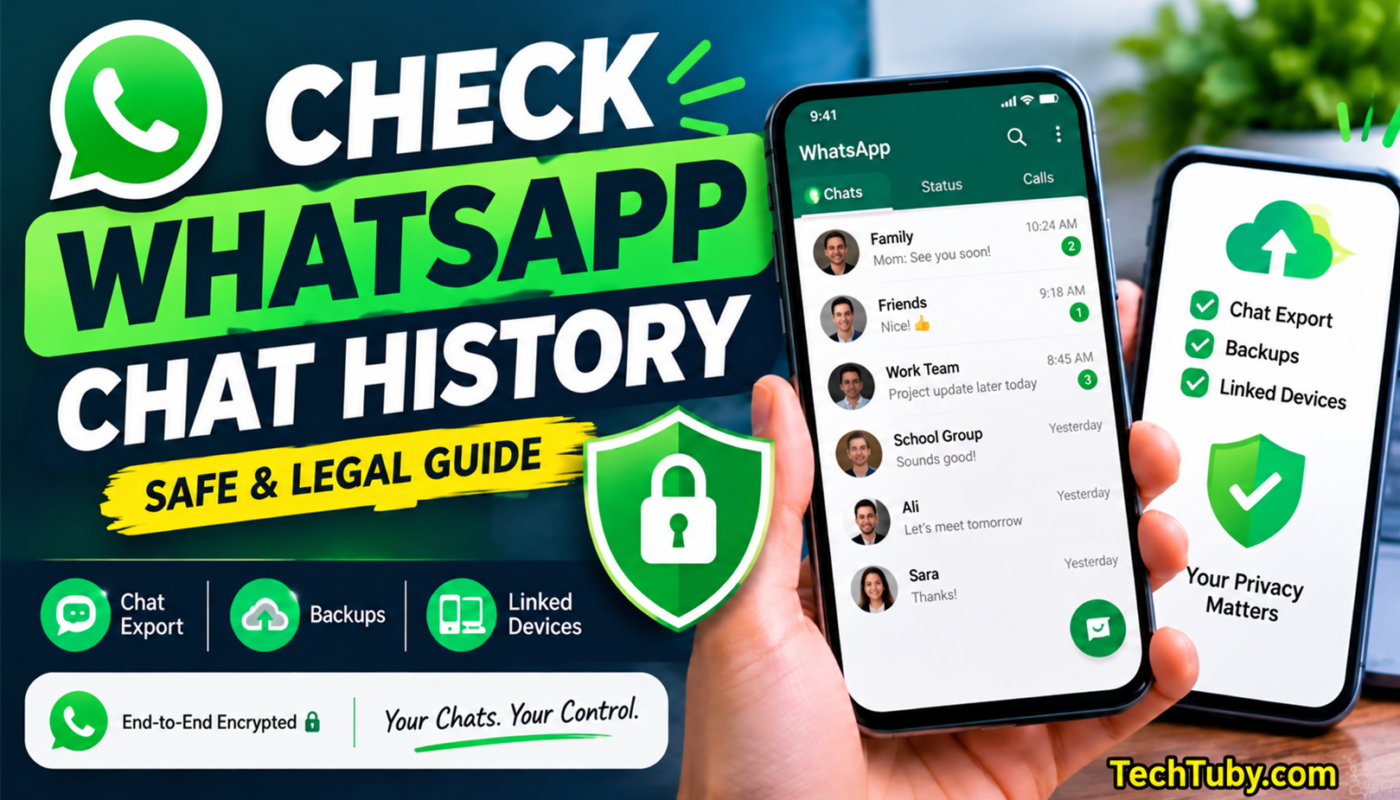
by WhatsApp is one of the most popular messaging applications in the world. People use it for personal conversations, business communication, customer support, voice calls, video calls, and sharing important files. Sometimes users want to access their WhatsApp chats on another device, such as a laptop, desktop computer, tablet, or secondary phone.
The safest way to do this is through the official WhatsApp Linked Devices feature.
WhatsApp Linked Devices allows you to connect your own WhatsApp account to other supported devices. After connecting the device, you can read messages, reply to chats, send files, and manage conversations without repeatedly checking your primary phone.
This article explains how WhatsApp Linked Devices works, how to connect a device safely, how to check connected devices, and how to protect your WhatsApp account from unauthorized access.
What Is WhatsApp Linked Devices?
Linked Devices is an official WhatsApp feature that allows users to access their WhatsApp account on additional devices.
You can connect your WhatsApp account with:
- WhatsApp Web
- Windows computer
- Mac computer
- Supported tablets
- Supported secondary phones
- Other compatible devices
After linking a device, your chats synchronize with that device. You can then use WhatsApp from the connected device to read and reply to messages.
This feature should only be used with:
- Your own WhatsApp account
- A family account you are authorized to manage
- A business WhatsApp account with the owner’s permission
- A child’s supervised account where legally and appropriately permitted
You should never secretly connect another adult’s WhatsApp account without their knowledge and permission.
Is WhatsApp Linked Devices Safe?
Yes, WhatsApp Linked Devices is generally the safest method for accessing your account on another device because it is an official WhatsApp feature.
WhatsApp messages and calls remain protected by end-to-end encryption. This means that conversations are designed to remain private between authorized users and their connected devices.
However, the feature is only safe when you follow proper security practices. If you link your account to a public or unknown computer and forget to log out, another person may be able to access your conversations.
Always use a trusted personal device and regularly check the Linked Devices section of WhatsApp.
How to Link WhatsApp With Another Device
You can connect WhatsApp to a laptop, desktop computer, or tablet by following these steps.
Step 1: Open WhatsApp Web
On the device you want to connect, open a web browser and visit:
web.whatsapp.com
A QR code will appear on the screen.
You can also install the official WhatsApp application for Windows or Mac. After opening the application, it will display a QR code.
Step 2: Open WhatsApp on Your Primary Phone
Open WhatsApp on the phone where your account is already registered.
For Android:
- Open WhatsApp.
- Tap the three dots in the upper-right corner.
- Select Linked devices.
For iPhone:
- Open WhatsApp.
- Open Settings.
- Select Linked Devices.
Step 3: Select “Link a Device”
Tap the Link a device button.
WhatsApp may ask you to confirm your identity using:
- Fingerprint
- Face recognition
- Phone password
- Screen-lock PIN
This verification protects your account from unauthorized linking.
Step 4: Scan the QR Code
Your phone’s camera will open automatically.
Point the camera at the QR code displayed on WhatsApp Web or the official desktop application. Make sure the entire QR code is visible inside the scanning area.
After the code is scanned, WhatsApp will start connecting the device.
Step 5: Wait for Your Chats to Load
Your chats may take a few moments to appear, depending on your internet connection and the number of conversations in your account.
Once synchronization is complete, you can use WhatsApp on the connected device.
What Can You Do on a Linked Device?
After successfully connecting WhatsApp, you can perform most common messaging activities from the linked device.
You can:
- Read your WhatsApp chats
- Reply to messages
- Send new messages
- Receive new messages
- Send photos and videos
- Share documents
- Download received files
- Send voice notes
- Participate in groups
- Search for old conversations
- Archive or mute chats
- Make supported voice or video calls
- Manage authorized business conversations
The availability of certain features may depend on the device, operating system, and version of WhatsApp being used.
Can Linked Devices Be Used as a WhatsApp Chat Tracker?
Linked Devices can help you access and manage WhatsApp chats, but it should not be described as a secret spying tool.
It is an account-access feature designed for authorized use.
For example, it can be helpful when:
- You want to use your own WhatsApp on a laptop.
- You want to manage customer messages from an office computer.
- A business owner gives employees permission to answer customer chats.
- Parents openly supervise a younger child’s WhatsApp account.
- A family member requests help managing their messages.
It should not be used to secretly monitor a spouse, partner, employee, friend, or another adult.
Secretly accessing someone’s WhatsApp account may violate their privacy and could be illegal.
How to Check Which Devices Are Connected
You should regularly review the devices connected to your WhatsApp account.
Follow these steps:
- Open WhatsApp on your primary phone.
- Open Settings or tap the three-dot menu.
- Select Linked devices.
- Review the list of connected devices.
- Check each device’s browser, operating system, and recent activity.
- Select any unknown device.
- Tap Log out.
If you do not recognize a device, log it out immediately.
You should also change your phone’s screen-lock password and enable WhatsApp two-step verification.
How to Remove a Linked Device
If you no longer want a computer, tablet, or secondary phone to access your WhatsApp account, you can disconnect it remotely.
To remove a linked device:
- Open WhatsApp on your primary phone.
- Go to Linked devices.
- Select the device you want to remove.
- Tap Log out.
- Confirm the action.
After logging out, that device will no longer receive or display your new WhatsApp messages.
This is especially important when:
- You used WhatsApp on someone else’s computer.
- You sold or gave away a device.
- An employee left your company.
- You connected WhatsApp to a public computer.
- You notice an unknown device in the list.
- Your laptop or tablet was lost or stolen.
How to Protect WhatsApp Linked Devices
Linked Devices is convenient, but users must protect their accounts carefully.
Use Only Trusted Devices
Never link your WhatsApp account to a public computer in a shop, school, hotel, library, or internet café.
If you must use a shared device, log out immediately after completing your work.
Lock Your Computer
Protect your laptop or computer with:
- A strong password
- Fingerprint security
- Face recognition
- Automatic screen locking
Anyone who can unlock your computer may also be able to open your connected WhatsApp account.
Enable WhatsApp Two-Step Verification
Two-step verification adds an extra PIN to your account.
To enable it:
- Open WhatsApp.
- Go to Settings.
- Select Account.
- Open Two-step verification.
- Tap Turn on.
- Create a secure PIN.
- Add a recovery email address if requested.
Never share this PIN with anyone.
Review Linked Devices Regularly
Check the Linked Devices section at least once every few weeks. Immediately remove any device that you do not recognize or no longer use.
Never Share Verification Codes
WhatsApp may send a registration or verification code to your phone. Never share this code with anyone, even if the person claims to be from WhatsApp support.
WhatsApp support will not ask you to send your private verification code through a chat or phone call.
Keep WhatsApp Updated
Install the latest WhatsApp updates from the official Google Play Store or Apple App Store.
Updates may include:
- Important security improvements
- Bug fixes
- New privacy settings
- Better linked-device protection
- Improved performance
Avoid downloading modified WhatsApp applications from unknown websites.
Benefits of Using WhatsApp Linked Devices
Official WhatsApp Feature
You do not need to install an unknown tracking application. Linked Devices is built directly into WhatsApp.
Easy to Use
Connecting a device usually takes only a few minutes. You simply open the Linked Devices section and scan a QR code.
Better for Business
Businesses can manage customer chats more efficiently on a computer. Typing long replies and sharing files is easier with a keyboard and large screen.
Access From Multiple Devices
Users can access their WhatsApp account from multiple supported devices without constantly using the primary phone.
Improved Productivity
Using WhatsApp on a computer makes it easier to handle messages while working, studying, or managing customer support.
Free to Use
WhatsApp does not normally charge an additional fee for connecting supported devices.
Limitations of WhatsApp Linked Devices
WhatsApp Linked Devices is useful, but it has some limitations.
- You need authorized access to the primary WhatsApp account during setup.
- The account owner can see connected devices.
- It is not designed for secret monitoring.
- Some mobile features may not be available on every linked device.
- Chat synchronization may take time on a slow internet connection.
- Anyone with access to an unlocked connected device may see the chats.
- A linked device may eventually be logged out after a long period of inactivity or account changes.
Linked Devices for WhatsApp Business
WhatsApp Linked Devices can be especially useful for small businesses.
A business owner may use it to:
- Answer customer questions from a computer
- Handle product orders
- Send price lists
- Share invoices
- Provide customer support
- Manage appointment requests
- Reply to multiple conversations more efficiently
If employees are allowed to use a linked business account, the business should create clear rules.
Employees should only access customer information required for their work. When an employee leaves the company or changes roles, their device should be removed immediately from the Linked Devices section.
A personal WhatsApp account should not be secretly monitored in the name of workplace management.
Linked Devices for Parents
Parents may use Linked Devices to supervise a child’s WhatsApp activity where it is appropriate and legally permitted.
However, parents should avoid secretly monitoring older children without any discussion. It is better to explain:
- Why the account is being supervised
- What information parents can access
- Which online risks the family is trying to prevent
- What the child should do if a stranger contacts them
- How to report bullying or inappropriate content
- When the level of monitoring may be reduced
The purpose should be online safety, not unnecessary control.
Parents should also teach children never to:
- Share personal photos with strangers
- Send addresses or school details
- Share WhatsApp verification codes
- Click suspicious links
- Join unknown groups
- Meet online contacts without parental knowledge
- Send money to someone they only know online
How to Identify Fake WhatsApp Tracker Apps
Many websites advertise applications that claim to read any WhatsApp account secretly. These services may be scams.
Be careful if a website claims that it can:
- Read chats using only a phone number
- Hack WhatsApp without account access
- Track anyone’s live location
- Break WhatsApp encryption instantly
- Recover every deleted message
- Monitor WhatsApp without linking or installing anything
- Remain completely invisible forever
Some fake tracker websites display a false scanning or hacking animation and then ask the user to:
- Complete surveys
- Download unknown applications
- Enter payment details
- Share a WhatsApp verification code
- Install unsafe APK files
- Disable phone security
- Pay repeatedly to unlock results
Do not provide personal information to such websites.
For safe access, use only the official WhatsApp Linked Devices feature and applications downloaded from trusted app stores.
Frequently Asked Questions
Can I link WhatsApp without the primary phone?
The primary phone is normally required during the initial linking process. WhatsApp may ask the account owner to scan a QR code or complete another verification method.
Can someone link my WhatsApp secretly?
A person generally needs temporary access to your unlocked phone and must pass the required verification process. Regularly check the Linked Devices section and remove anything you do not recognize.
Can I use WhatsApp Web when my primary phone is offline?
After a device has been properly linked, supported linked devices may continue working even when the primary phone is temporarily offline. Some limitations may still apply.
How many devices can be linked?
WhatsApp currently supports multiple linked devices. The exact limit and supported device types may change, so check the latest information inside WhatsApp or its official Help Center.
Will the account owner know about linked devices?
Connected devices are visible in the Linked Devices section. The account owner can review their activity and log them out.
Can I use Linked Devices to monitor another adult?
Only with their clear permission. Secretly accessing another adult’s messages can violate privacy and may be illegal.
Is WhatsApp Web free?
Yes. WhatsApp Web and the official desktop application are normally free to use. Standard internet or mobile-data charges may still apply.
Can I disconnect a linked device remotely?
Yes. Open WhatsApp on the primary phone, visit Linked Devices, select the device, and tap Log out.
Is a third-party WhatsApp tracker better than Linked Devices?
For accessing your own account or an authorized business account, the official Linked Devices feature is generally safer than unknown tracker applications.

Final Conclusion
WhatsApp Linked Devices is the safest and most reliable method for accessing WhatsApp chats on another supported device. It is official, easy to use, and does not require an unknown tracking or spying application.
You can connect your WhatsApp account to a computer, tablet, or supported secondary device by opening the Linked Devices section and scanning the displayed QR code. After connecting, you can read messages, reply to chats, send files, and manage conversations from the linked device.
However, this feature must only be used on your own account or with the account owner’s clear permission. It should never be used for secret spying.
To keep your account safe, regularly review connected devices, log out unknown sessions, enable two-step verification, use strong device passwords, and never share your WhatsApp verification code.
When used responsibly, WhatsApp Linked Devices offers a secure, convenient, and completely official way to manage WhatsApp chats across multiple devices.