 by
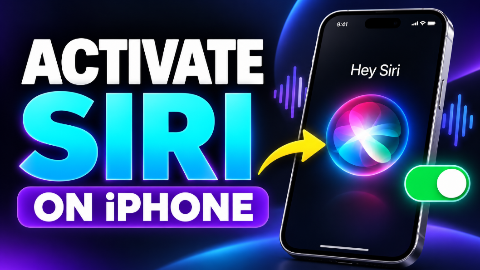
by Siri can make everyday tasks easier by letting you control parts of your iPhone with your voice. You can ask it to set an alarm, call a contact, create a reminder, open an app, or answer a question. Once you have enabled Siri, you can activate it with a supported voice phrase or by pressing a button.
If you skipped Siri during your iPhone’s initial setup, you can still turn it on through Settings. The process is straightforward, although the names of the menus can vary between iOS versions.
This guide explains how to activate Siri, personalise its settings, try useful commands, and fix common problems.
What Is Siri?
Siri is Apple’s built-in digital assistant. It lets you make requests in everyday language instead of finding every option manually.
For example, instead of opening the Clock app and creating a timer, you can say:
“Hey Siri, set a timer for ten minutes.”
Instead of searching your contacts, you can say:
“Hey Siri, call Ahmed.”
Siri’s available features depend on your device, software, language, region, and the apps you use. Some requests also require app permissions or an internet connection.
Can You Activate Siri on Every Phone?
This guide focuses on the iPhone. Siri is Apple’s assistant and is not available as an official system assistant for Android phones.
If you have a Samsung, Infinix, Xiaomi, Oppo, Vivo, or another Android phone, you cannot enable Apple’s Siri through your phone’s settings. Your device may offer a different assistant.
On an iPhone, Siri is built in, so you do not need to download a separate Siri application to get started.
What You Should Check Before Setting Up Siri
Before you begin, make sure your iPhone is connected to Wi-Fi or mobile data. Keep the microphone uncovered and choose a reasonably quiet place if you plan to set up voice activation.
It also helps to know that enabling Siri and activating Siri are different steps. Enabling it makes the assistant available on your phone. Activating it gets its attention when you want to make a request.
You can enable voice activation, button activation, or both, depending on the options available on your device.
How to Turn On Siri on Your iPhone
Start by opening the Settings app.
Find the Siri settings page. Depending on your software, it may be called:
- Siri
- Apple Intelligence & Siri
- Siri & Search on older versions
If you cannot find it, use the search field in Settings and enter Siri.
Open the matching settings page. If you see Turn On Siri, select it and follow the instructions. On other versions, you may need to open Talk to Siri, Talk & Type to Siri, or a similar activation menu.
Apple changes these menus between software versions, so follow the wording displayed on your phone rather than expecting every device to show an identical screen.
How to Activate “Hey Siri”
Voice activation lets you start a request without pressing a button.
In Siri settings, look for the voice activation controls. These may appear under Requests, Talk to Siri, or Talk & Type to Siri.
Choose “Hey Siri” or “Siri” or “Hey Siri”, whichever your phone offers.
If your iPhone asks you to complete voice setup, read the phrases shown on the screen in your normal speaking voice. Finish the setup, then test it by saying:
“Hey Siri, set a timer for one minute.”
The option to activate Siri by saying only “Siri” is limited to supported devices, languages, and regions. If your phone offers only “Hey Siri,” use that phrase.
Tips for Voice Setup
Speak naturally during setup. You do not need to shout or imitate another accent.
Hold your phone at a comfortable distance, keep its microphone clear, and avoid completing the voice prompts beside a loud television or fan. These simple steps make it easier to check whether your phone is hearing you clearly.
Once setup is complete, try a short request before moving on to longer commands.
How to Activate Siri With the Side Button
If you prefer using a button, enable Press Side Button for Siri in Siri settings.
On an iPhone with Face ID:
- Press and hold the side button.
- Wait for Siri to appear.
- Ask your question or make your request.
- Release the button as appropriate.
Use the side button by itself. A quick press usually locks or wakes the screen, so you need to hold it to summon Siri.
Button activation is useful when you are in a noisy place, when voice activation does not hear you, or when you prefer to decide exactly when Siri starts listening.
How to Activate Siri With the Home Button
If your iPhone has a Home button, press and hold that button to activate Siri once the relevant option is enabled.
When Siri appears, speak your request.
For example:
“Set an alarm for seven tomorrow morning.”
The button you use depends on your iPhone’s design: Face ID models use the side button, while models with a Home button use the Home button.
How to Check Whether Siri Is Working
After enabling Siri, test it with a few clear requests.
Start with something simple:
“Hey Siri, open Calculator.”
Then try:
“Hey Siri, set a timer for two minutes.”
Finally, ask a question:
“Hey Siri, what is the weather today?”
These requests help you check whether Siri can hear you, understand your speech, and complete different types of tasks.
If Siri activates but misunderstands a name, try a request that does not involve a contact. That can help you distinguish a recognition problem from a problem with a particular contact entry.
How to Type to Siri Instead of Speaking
Typing can be useful in a quiet office, library, classroom, or shared room.
On iPhones without Apple Intelligence enabled, Apple provides a Type to Siri option under:
Settings → Accessibility → Siri
Turn it on, then activate Siri and enter your request using the keyboard.
On supported devices with Apple Intelligence, typing controls can appear in Siri’s own settings. The available method depends on your software and configuration.
Try typing:
“Remind me to submit my assignment tomorrow at 9 AM.”
Typing is also helpful when you want to enter an unusual name, address, or phrase precisely.
How to Change Siri’s Language and Voice
You can personalise how Siri listens and speaks.
Open Siri settings and look for Language. Choose a language you are comfortable using and that your device supports.
To change how Siri sounds, open Voice or Siri Voice and select from the available options. The choices vary by language and software version.
For spoken replies, look for Responses or Siri Responses. Options such as Prefer Spoken Responses let you hear Siri’s answers aloud. Other settings favour silent responses or show more text on the screen.
Choose settings that fit your surroundings. Spoken replies can be convenient at home, while silent responses may suit a shared workspace.
Useful Siri Commands to Try
Once Siri is active, the best way to become comfortable with it is to use it for small, practical tasks.
Set Alarms
Try:
- “Set an alarm for 6:30 AM.”
- “Wake me up at eight tomorrow morning.”
- “Show my alarms.”
Check the result, particularly when setting an alarm for an important appointment.
Create Timers
Timers are useful while cooking, studying, exercising, or taking a break.
Try:
- “Set a timer for fifteen minutes.”
- “Set a five-minute tea timer.”
- “How much time is left on my timer?”
Make Calls
You can ask Siri to call someone saved in your contacts.
Try:
- “Call Ali.”
- “Call Mum.”
- “Call Sara on speaker.”
If more than one contact matches your request, Siri may ask you to choose.
Send Messages
Try:
“Send a message to Ahmed saying I will arrive in ten minutes.”
Review the recipient and message before it is sent, especially when your contacts include similar names.
Create Reminders
Try:
- “Remind me to buy milk at six this evening.”
- “Remind me to pay the electricity bill tomorrow.”
- “Remind me to take my documents on Monday morning.”
Include a clear time or date when you need a reminder at a particular moment.
Open Apps
Try:
- “Open WhatsApp.”
- “Open Camera.”
- “Open Settings.”
- “Open Calculator.”
Opening an app does not guarantee Siri can operate every feature inside it. Further actions depend on the app’s support.
Ask Everyday Questions
Try:
- “What is twenty percent of fifteen thousand?”
- “How many centimetres are in a metre?”
- “What time is it in London?”
- “What does this word mean?”
For important information, check that the answer fits your question and circumstances.
Ask for Directions
Try:
- “Get directions to Lahore.”
- “Find a nearby petrol station.”
- “How long will it take to reach home?”
Navigation requests may need location access, a network connection, and a correctly saved destination.
What to Do If Siri Does Not Respond
If Siri is not working, begin with simple checks.
Check Your Connection
Make sure Wi-Fi or mobile data is working. Open a webpage to confirm that your phone can access the internet.
Check Voice Activation
Return to Siri settings and confirm that “Siri” or “Hey Siri” is enabled.
If it is already on, switch it off and enable it again. Complete any voice setup prompts that appear.
Try the Button
Activate Siri with the side button or Home button.
If the button works but the voice phrase does not, focus on the voice activation settings and whether your phone can hear you.
Check Spoken Responses
If Siri appears on the screen but you cannot hear it, check the response settings and select a spoken response option. Adjust the volume while Siri is speaking.
Restart Your iPhone
Restart the phone, then try a short command again.
Check for Software Updates
Look under Settings → General → Software Update for an available update.
Apple also notes that certain VPN profiles can prevent Siri from being available. If Siri settings remain missing, check whether a VPN or managed configuration is involved. Avoid removing work or school profiles without checking with the organisation that manages them.
Check Whether Your Microphone Is Clear
A covered microphone can make spoken requests harder to understand.
Remove anything obstructing the microphone area and try again. You can also record a short clip in Voice Memos and listen to it.
If the recording is unusually quiet, distorted, or silent, the problem may involve audio input rather than Siri alone. Test without connected headphones to help narrow it down.
Avoid inserting sharp objects into microphone openings when cleaning your phone.
Siri and Apple Intelligence: Do You Need Both?
Ordinary Siri setup and Apple Intelligence are related but separate.
You do not need to buy a new iPhone solely because your device does not offer every newer Siri feature. Start by checking which Siri options your existing phone provides.
Advanced capabilities can have additional device, software, language, and regional requirements. A missing advanced feature does not automatically mean that basic Siri activation is unavailable. Apple lists these requirements separately from ordinary activation instructions.
Common Mistakes During Setup
A few small mistakes can make activation seem more complicated than it is:
- Pressing instead of holding the button: Hold the appropriate button until Siri appears.
- Using an unsupported wake phrase: Use the phrase offered in your settings.
- Expecting identical menus on every iPhone: Menu names vary with iOS.
- Speaking before Siri activates: Wait for the assistant to appear or respond.
- Trying a complicated request first: Begin with a timer or app-opening command.
- Assuming every app supports every request: App integration varies.

Frequently Asked Questions
Do I need to install Siri?
No. Siri is built into supported iPhones. Enable it through Settings.
Can I use Siri without saying “Hey Siri”?
Yes. You can activate Siri using the appropriate button. Typing is another option when configured.
Why does my phone show “Apple Intelligence & Siri”?
Apple uses different settings labels across software versions. Open that menu to find your available Siri controls.
Why does Siri open but stay silent?
Your response preferences may favour silent replies. Check the response settings and volume.
Can Siri understand every language?
No. Select from the supported languages shown on your device. Availability and capabilities differ by language and region.
Do I have to enable voice activation?
No. You can use button activation if you prefer.
Start With One Useful Task
After setting up Siri, choose one task you do regularly. Set your morning alarm, start a cooking timer, or create a reminder for tomorrow.