 by
by In today’s digital world, WiFi has become an essential part of everyday life. Whether you are using a smartphone, laptop, tablet, or smart TV, a stable internet connection can make everything easier. However, there are times when you may not have mobile data available or your own WiFi connection may not be working.
This often leads people to search for methods to connect to WiFi for free.
The important thing to understand is that there is no legitimate universal trick, app, or secret setting that can connect your device to a password-protected WiFi network without the owner’s permission. Trying to bypass WiFi security or access someone else’s network without authorization can be illegal and unsafe.
The good news is that there are many legal and safe ways to get free WiFi, including public WiFi hotspots, guest networks, community networks, WiFi sharing features, and hotspots provided by friends or family.
In this detailed guide, you will learn how to find and connect to available free WiFi, how to use WiFi sharing, how to connect safely on Android and iPhone, how to troubleshoot WiFi connection problems, and how to protect your privacy when using public networks.
What Does “Free WiFi” Actually Mean?
Free WiFi generally means a wireless internet connection that you can use without paying an additional fee to access that particular network.
Examples include:
- Public WiFi hotspots
- Free WiFi at libraries
- Free WiFi at hotels
- Guest WiFi networks
- Free WiFi at restaurants and cafés
- Airport WiFi
- University or campus WiFi
- Community WiFi
- WiFi shared by friends or family
- Personal hotspots shared with permission
However, “free WiFi” does not mean that every WiFi network you see on your phone is available for free.
If a network is password-protected, you should ask the owner for permission and the correct password rather than attempting to bypass its security.
Can You Connect to Any WiFi for Free?
No, you cannot legally or safely connect to any WiFi network without authorization.
WiFi networks can use security technologies such as WPA2 and WPA3 to prevent unauthorized access. A network that appears in your phone’s WiFi list is not necessarily a public network.
If you know the password or the network owner has intentionally made the network public, you can connect normally.
For example, if a café provides free WiFi to customers, you can ask the staff for the network name and password. Similarly, if your friend has WiFi and agrees to share it with you, they can provide the password or use a WiFi-sharing feature.
Best Legal Ways to Get Free WiFi
There are several practical ways to access free internet without bypassing anyone’s security.
1. Use Public WiFi Hotspots
Public WiFi is one of the easiest ways to access the internet without using your mobile data.
You may find free WiFi at:
- Cafés
- Restaurants
- Shopping malls
- Airports
- Hotels
- Libraries
- Universities
- Public transportation areas
- Community centers
- Some government facilities
Open your phone’s WiFi settings and look for networks that are clearly advertised as public or guest networks.
How to Connect
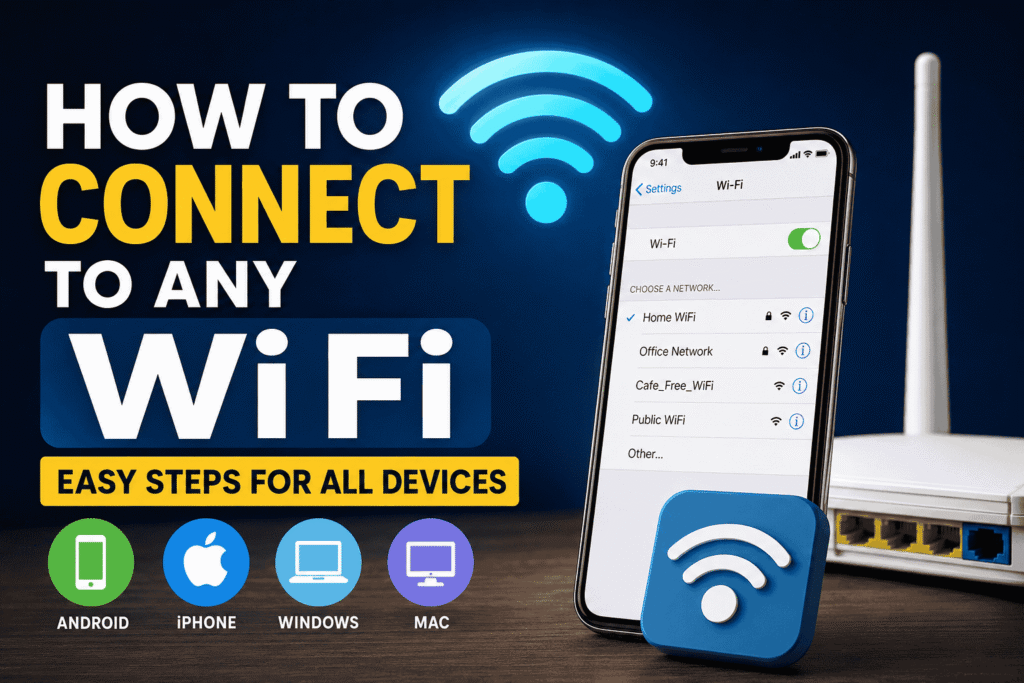
- Open Settings.
- Tap WiFi or Network & Internet.
- Turn WiFi on.
- Look for the official public or guest network.
- Tap the network.
- Enter the password if required.
- If a login page appears, follow the instructions.
- Accept the terms if you agree.
- Start browsing.
Always confirm the network name with the business or organization to avoid connecting to a fake hotspot.
2. Ask a Friend or Family Member to Share WiFi
If someone you trust is nearby, they can share their WiFi connection with you.
Many modern Android phones allow users to share a WiFi network through a QR code.
The owner does not necessarily need to tell you the password manually.
Android WiFi QR Sharing
On many Android phones:
- Open Settings.
- Go to WiFi.
- Select the connected WiFi network.
- Tap Share.
- Verify your identity if requested.
- A QR code will appear.
- Scan the QR code with your phone.
The exact steps may vary depending on the phone manufacturer and Android version.
3. Use a Personal Hotspot With Permission
Another simple method is to ask someone with mobile data to enable a personal hotspot.
For example, a friend can turn on their mobile hotspot and give you permission to connect.
On Android
The general process is:
- Open Settings.
- Go to Hotspot & tethering or Mobile Hotspot.
- Turn on Mobile Hotspot.
- Check the hotspot name and password.
- Connect your device to it.
On iPhone
The general process is:
- Open Settings.
- Tap Personal Hotspot.
- Enable Allow Others to Join.
- Check the WiFi password.
- Connect your device to the hotspot.
Remember that the hotspot owner’s mobile data is being consumed, so always ask for permission.
4. Look for Guest WiFi
Many businesses provide separate guest networks.
A guest network may have a name such as:
- Guest WiFi
- Free WiFi
- Visitor WiFi
- Public WiFi
- Customer WiFi
If you see a guest network, ask the business for its connection instructions.
Some guest networks are completely open, while others require a password, phone number, email address, or login page.
5. Use Free WiFi at Libraries
Libraries in many cities provide internet access to visitors.
Depending on the library, you may need:
- A library membership
- A visitor pass
- A WiFi password
- Acceptance of terms and conditions
Libraries can be especially useful when you need a quiet place to work, study, download files, or access online services.
6. Use Free WiFi at Cafés and Restaurants
Many cafés and restaurants offer WiFi to customers.
If you are already visiting the business, ask staff for the official WiFi details.
Be careful with networks that have names similar to the business but are not officially confirmed.
For example, if the official café network is:
Cafe_Official_WiFi
you should not automatically trust another network such as:
Cafe_Free_WiFi_5G
unless staff confirm that it belongs to them.
7. Use Hotel WiFi
Hotels commonly offer WiFi to guests.
Depending on the hotel, access may require:
- Room number
- Guest password
- Reception-issued credentials
- Captive portal login
If you are staying at a hotel, ask reception for the official WiFi network name and login instructions.
8. Use Airport WiFi
Airports often provide public WiFi.
The usual process is:
- Turn on WiFi.
- Select the airport’s official network.
- Open your browser if the login page does not appear automatically.
- Accept the terms.
- Complete any required verification.
- Start using the internet.
Airport WiFi networks can be busy, so speeds may vary considerably.
9. Use Community WiFi
Some communities, municipalities, organizations, and institutions provide public internet access.
These networks may be available in:
- Parks
- Public squares
- Community centers
- Educational areas
- Transportation locations
Check official signs or websites to verify the correct network.
10. Use WiFi Maps Carefully
Some apps and websites provide information about public WiFi hotspots.
These services can help you discover locations where free internet may be available.
However, you should avoid using any service that claims it can hack, crack, reveal, or bypass WiFi passwords.
A legitimate WiFi hotspot directory should primarily help users find publicly available networks.
How to Connect to Free WiFi on Android
Connecting to an authorized WiFi network on Android is straightforward.
Step 1: Open Settings
Open the Settings application on your Android phone.
Step 2: Open WiFi
Depending on your device, the option may be called:
- WiFi
- Network & Internet
- Connections
- WLAN
Step 3: Turn WiFi On
Enable WiFi and wait for nearby networks to appear.
Step 4: Select the Correct Network
Choose an official public or guest network.
Step 5: Enter the Password
If the network requires a password, enter the password provided by the network owner.
Step 6: Complete the Login
Some public networks open a webpage where you need to accept terms or complete a simple login.
Step 7: Check the Connection
Once connected, your phone should display the WiFi icon in the status bar.
How to Connect to Free WiFi on iPhone
The process is also simple on iPhone.
- Open Settings.
- Tap WiFi.
- Turn WiFi on.
- Select an authorized public or guest network.
- Enter the password if required.
- Complete the network’s login page if necessary.
- Wait until the WiFi icon appears.
How to Connect a Laptop to Free WiFi
Windows laptops can connect to public WiFi easily.
- Click the WiFi/network icon.
- Turn WiFi on if necessary.
- Select the official network.
- Click Connect.
- Enter the password if required.
- Complete the browser login process.
On macOS:
- Click the WiFi icon.
- Select the available authorized network.
- Enter the password.
- Complete any captive portal requirements.
What About Apps That Claim to Find Any WiFi Password?
You may find applications online that claim to:
- Hack WiFi
- Crack WiFi passwords
- Reveal hidden passwords
- Connect to any WiFi
- Get unlimited WiFi
- Bypass WiFi security
You should be extremely cautious with these claims.
There is no legitimate app that can magically connect your device to every password-protected WiFi network.
Some suspicious applications may instead:
- Display excessive advertisements
- Collect personal information
- Request unnecessary permissions
- Install unwanted software
- Attempt to steal credentials
- Provide fake “hacking” animations
- Ask users to complete questionable surveys
Download applications only from trusted sources and carefully review their permissions.
Is There a Secret Android Setting to Get Free WiFi?
No.
Android does not have a universal secret setting that provides free internet access to password-protected WiFi networks.
However, Android does have useful features such as:
- WiFi sharing
- QR code sharing
- Auto-connect
- Saved networks
- WiFi calling on supported devices
- Mobile hotspot
- Network reset
- Private DNS
These features can improve your connection experience, but they do not bypass WiFi security.
How to Share WiFi With a QR Code
WiFi QR sharing is one of the most convenient features available on many modern smartphones.
Suppose your friend is already connected to a WiFi network.
They can often:
- Open WiFi settings.
- Select the connected network.
- Tap Share.
- Authenticate if required.
- Display a QR code.
- Let you scan it.
Your phone can then connect to the network.
This is useful because the owner does not need to manually type a long password.
How to Find Your Own Saved WiFi Password
If you are trying to connect another device to your own WiFi, you may be able to view or share the saved network credentials through your phone.
On many Android devices:
- Open Settings.
- Go to WiFi.
- Select your connected network.
- Tap Share.
- Verify your identity.
- Use the displayed QR code or available password information.
The exact interface depends on your Android version and phone manufacturer.
Why You Should Not Try to Bypass WiFi Security
Attempting to access someone else’s WiFi without permission can create serious problems.
Legal Risks
Unauthorized access to computer networks may violate local laws.
Privacy Risks
You could expose yourself to monitoring, malicious websites, or stolen credentials.
Malware Risks
Many “WiFi hacking” apps and websites are designed to trick users into downloading malicious software.
Account Security Risks
A malicious application could potentially request unnecessary permissions or attempt to access sensitive information.
For these reasons, it is much safer to use authorized public WiFi.
How to Stay Safe on Public WiFi
Free WiFi can be useful, but you should always take security precautions.
1. Confirm the Network Name
Ask the business or organization for the official network name.
Do not assume that the strongest signal is the legitimate network.
2. Avoid Sensitive Transactions
When using an unfamiliar public network, avoid performing highly sensitive activities unless you are confident in the security of your connection.
3. Use HTTPS Websites
Look for HTTPS in your browser when visiting websites.
4. Keep Your Phone Updated
Install security updates and operating system updates regularly.
5. Disable Auto-Connect When Appropriate
If your phone automatically connects to unknown networks, consider disabling automatic connection features.
6. Forget Public Networks After Use
If you no longer need a public network, you can remove it from your saved networks.
7. Use a Trusted VPN When Appropriate
A reputable VPN can provide an additional layer of protection on untrusted networks, although it does not make every online activity completely anonymous or risk-free.
Free WiFi vs Free Mobile Internet
These are different concepts.
Free WiFi
You connect to an existing wireless network provided by another person or organization.
Free Mobile Internet
This generally refers to mobile data that does not require you to pay for the particular data usage, such as a legitimate promotional offer.
You should be careful with websites claiming to provide “free unlimited mobile data hacks.” Many such claims are misleading or unsafe.
Common WiFi Connection Problems
Sometimes you have permission to use WiFi but still cannot connect.
Here are common solutions.
WiFi Says “Saved” But Won’t Connect
Try:
- Turn WiFi off and on.
- Forget the network.
- Restart your phone.
- Re-enter the password.
- Restart the router if you control it.
Connected But No Internet
The WiFi connection may be working while the router itself has no internet connection.
Try opening another website.
If nothing works, ask the network owner whether the internet service is working.
WiFi Password Is Not Working
Check:
- Capital letters
- Numbers
- Special characters
- Spaces
- Correct network name
WiFi passwords are usually case-sensitive.
Public WiFi Login Page Does Not Appear
Try opening a browser and visiting a normal website.
A captive portal may then redirect you to the login page.
If it still does not work, disconnect and reconnect to the network.
Frequently Asked Questions
Can I connect to any WiFi without a password?
Only if the network is intentionally open or the owner has provided another authorized method of access. A password-protected network should not be bypassed.
Is there an app that connects to any WiFi for free?
There is no legitimate universal app that can connect you to every password-protected WiFi network without authorization.
Can Android reveal a WiFi password?
On many Android devices, you can share the credentials of a network that your device is already authorized to use, often through a QR code.
Can I use someone else’s WiFi?
You should get permission from the network owner before using their private WiFi.
Is public WiFi safe?
Public WiFi can be useful, but it is not automatically secure. Verify the network and take reasonable security precautions.
Can I get free WiFi at a café?
Many cafés provide free WiFi to customers. Ask staff for the official network and password.
Can I use hotel WiFi for free?
Some hotels include WiFi with a stay, while others may charge for it or require guest credentials. Check with the hotel.
Can I get free WiFi at an airport?
Many airports offer public WiFi, although availability, speed, and access requirements vary.
Does a VPN provide free WiFi?
No. A VPN protects or routes your internet traffic; it does not create an internet connection when you have no network access.
Can a QR code connect me to WiFi?
Yes. A WiFi QR code can allow an authorized device to join a network without manually typing the password.
Is WiFi hacking legal?
Accessing a private network without permission can be unlawful. Always obtain authorization before accessing a network.
What is the safest way to get free internet?
The safest options are authorized public WiFi, a guest network, or a hotspot shared with permission by someone you trust.
Why does free WiFi sometimes ask for my information?
Public networks often use captive portals that may ask you to accept terms, sign in, or complete another verification step. Only provide information when you trust the provider and understand why it is required.

Final Thoughts
Getting free WiFi is possible, but there is an important difference between finding legitimate free internet and attempting to bypass someone else’s WiFi security.
You do not need a “secret WiFi hacking app” to get online. Instead, look for legitimate public hotspots, guest networks, libraries, cafés, hotels, airports, community networks, or WiFi shared by friends and family with permission.
If you already have access to a WiFi network, modern Android and iPhone devices also provide convenient features such as QR code sharing and personal hotspots.
Most importantly, always protect your privacy when using public networks. Verify the network name, avoid suspicious applications, keep your device updated, and never enter sensitive information into questionable websites.