 by
by Introduction
Is your Android phone charging very slowly? Do you want to know how to enable fast charging on your mobile phone?
Many modern Android smartphones support fast charging, but the actual charging speed depends on the phone, charger, cable, battery condition, temperature, and software settings.
Some phones also have a dedicated charging option such as Fast Charging, Fast Charge, Super Fast Charging, FlashCharge, VOOC, SUPERVOOC, or another manufacturer-specific name.
In this guide, we’ll explain how to enable fast charging on Android in 2026, where to find the relevant settings, how to check whether fast charging is working, and what to do if your phone still charges slowly.
What Is Fast Charging?
Fast charging is a technology that allows a compatible phone to charge its battery more quickly than standard charging.
The exact charging speed depends on the phone and charging system.
For example, different manufacturers use different technologies and names, including:
- Samsung Super Fast Charging
- Xiaomi HyperCharge
- OPPO SUPERVOOC
- OnePlus SUPERVOOC
- vivo FlashCharge
- HONOR SuperCharge
- Other USB Power Delivery-based charging systems
Not every phone supports every charging technology.
Can You Enable Fast Charging From Settings?
Sometimes, yes.
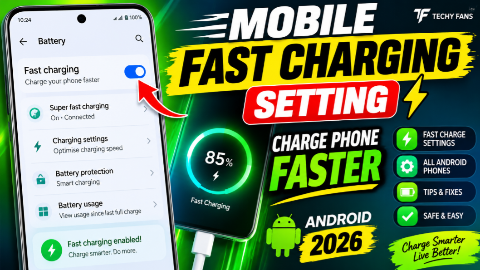
Some Android phones include a charging option in Settings that allows you to turn fast charging on or off.
However, not every Android phone has a manual fast-charging switch.
If your phone doesn’t show such an option, fast charging may automatically activate when you connect a compatible charger and cable.
How to Enable Fast Charging on Android
The exact menu depends on your phone manufacturer and Android version.
Try these general steps:
Step 1: Open Settings
Open the Settings application on your Android phone.
Step 2: Search for Charging
Use the Settings search bar and type:
Fast Charging
You can also search for:
Charging
or
Battery
Step 3: Open the Charging Settings
If your phone supports a manual fast-charging option, you may find it under:
Battery → Charging Settings
or a similar menu.
Step 4: Enable Fast Charging
If you see an option such as:
Fast Charging
Fast Charge
or
Fast Charging Mode
turn it on.
The exact name can be different depending on your phone.
How to Enable Fast Charging on Samsung
Samsung phones may provide charging-related options under battery settings, although the exact location and available options depend on the model and One UI version.
Try:
Settings → Battery → Charging settings
Look for an option related to:
Fast charging
or
Fast charging / Super fast charging
If your particular Samsung model doesn’t show a switch, the phone may manage compatible charging automatically.
How to Enable Fast Charging on Xiaomi
On compatible Xiaomi, Redmi, and POCO devices, charging technology and settings can vary by model.
Try:
Settings → Battery
Then look for charging-related options.
Some models may include features related to:
- Fast charging
- Charging speed
- Battery protection
- Optimized charging
The exact options depend on the device.
How to Enable Fast Charging on Infinix
Infinix phones can use different charging technologies depending on the model.
Open:
Settings → Battery
Then check for charging or battery-related options.
If there is a fast-charging setting, enable it.
If you don’t find one, your phone may activate supported fast charging automatically when a compatible charger and cable are connected.
How to Enable Fast Charging on Tecno
On compatible Tecno smartphones, open:
Settings → Battery
and look for charging-related settings.
The name and availability of fast-charging options can vary between models.
How to Enable Fast Charging on vivo
vivo uses different charging technologies across its smartphones.
Open:
Settings → Battery
and check for charging-related options.
If your phone supports a compatible fast-charging system, use the original or manufacturer-approved charger and cable whenever possible.
How to Enable Fast Charging on OPPO
OPPO smartphones can use technologies such as VOOC or SUPERVOOC depending on the model.
Open:
Settings → Battery
and check the available charging options.
Some charging features are automatically controlled by the phone and charger rather than being manually enabled.
Why Fast Charging May Not Work
If your phone supports fast charging but isn’t charging quickly, several things could be responsible.
1. Incompatible Charger
A regular charger may not provide the power required for your phone’s fast-charging system.
Always check the charging specifications recommended for your phone.
2. Poor-Quality Cable
The cable is also important.
A cable may physically fit your phone but still not support the charging speed you expect.
Use a compatible, good-quality cable.
3. Phone Temperature Is Too High
Phones can reduce charging speed when they become hot.
If the device is warm:
- Stop demanding apps
- Keep the phone in a cool environment
- Avoid covering it with thick material while charging
- Allow it to cool naturally
Don’t use unsafe cooling methods such as putting the phone in a refrigerator or freezer.
4. Using the Phone While Charging
Playing games, recording videos, or running demanding applications while charging can increase power consumption and heat.
This may make charging appear slower.
For faster charging, leave the phone idle when practical.
5. Damaged Charging Port
Dust, debris, moisture, or physical damage in the charging port can interfere with charging.
If you suspect the port is damaged, have it checked by a qualified technician.
Don’t insert metal objects into the charging port.
6. Battery Condition
Older or degraded batteries may not perform the same way as a newer battery.
Your phone may also reduce charging speed to protect the battery.
How to Check Whether Fast Charging Is Working
There are several ways to check.
Check the Lock Screen
Some Android phones display a charging message such as:
Fast Charging
Super Fast Charging
or another manufacturer-specific term.
Check the Battery Settings
Open:
Settings → Battery
Some phones display information about the charging state.
Look at the Charging Animation
Certain manufacturers display a different charging animation when a fast-charging protocol is detected.
However, the animation varies by phone.
Use the Original Charger
One of the safest ways to get the charging speed your phone was designed for is to use the original charger supplied with the phone, when available.
If you need a replacement, choose a charger that matches the phone manufacturer’s specifications.
Don’t assume that a charger with a very high wattage will automatically make your phone charge at that wattage.
The phone controls how much power it accepts.
Use a Compatible Charging Cable
The charger isn’t the only important component.
The cable must also support the required charging capabilities.
If your phone supports high-speed charging but you’re using an unsuitable cable, charging may fall back to a lower speed.
Does a Higher-Watt Charger Always Charge Faster?
No.
For example, if your phone is designed to accept a particular maximum charging power, connecting a much higher-powered charger doesn’t necessarily increase the phone’s charging speed.
The phone and charger negotiate an appropriate charging level.
Compatibility is more important than simply choosing the highest wattage.
Fast Charging vs Normal Charging
| Feature | Normal Charging | Fast Charging |
|---|---|---|
| Charging speed | Lower | Higher |
| Compatible hardware | Basic charger may work | Compatible charger/cable required |
| Heat | Usually lower | Can be higher |
| Charging time | Longer | Usually shorter |
| Availability | Most phones | Supported phones only |
Fast charging is convenient, but charging speed can vary throughout the charging cycle.
Why Does Charging Slow Down Near 100%?
This is normal.
A smartphone generally doesn’t charge at maximum speed throughout the entire battery cycle.
Charging may be faster when the battery level is low and become slower as the battery approaches full capacity.
This helps manage heat and battery stress.
So don’t assume fast charging is broken just because charging becomes slower near 80–100%.
Safe Tips for Faster Charging
1. Use a Compatible Charger
Use the charger recommended for your phone.
2. Use a Good Cable
A compatible cable can help the phone reach its supported charging mode.
3. Keep the Phone Cool
Excessive heat can cause charging speeds to decrease.
4. Avoid Heavy Tasks While Charging
Gaming and other demanding tasks can increase heat and power consumption.
5. Keep the Charging Port Clean
Keep the port free from dust and moisture.
6. Update Your Phone
Install official software updates when available.
7. Don’t Use Damaged Accessories
Replace damaged chargers or cables.
Can Airplane Mode Make Charging Faster?
Airplane Mode can reduce some wireless activity, such as cellular connections, Wi-Fi, and Bluetooth depending on what you leave enabled.
This may reduce power consumption while charging, but it doesn’t increase the maximum charging power supported by your phone.
If you need to charge quickly, simply leaving the phone idle can already help.
Can Turning Off the Phone Charge Faster?
A powered-off phone isn’t using power for normal background tasks, so in some situations less energy is consumed while charging.
However, the maximum charging speed is still determined by the phone, charger, cable, temperature, and charging system.
You don’t need to turn off your phone every time you charge it.
Should You Use Battery Saver While Charging?
Battery Saver primarily reduces power consumption.
It doesn’t magically increase the charger’s maximum output.
However, reducing background activity can mean less power is being consumed while the phone charges.
What Is Optimized Charging?
Some smartphones include battery-protection features designed to reduce unnecessary time spent at a high charge level.
These features may:
- Delay charging to 100%
- Limit charging in certain situations
- Learn charging patterns
- Protect long-term battery health
If you see an optimized or adaptive charging option, don’t automatically disable it just because charging appears slower.
It may be designed to protect battery longevity.
Common Fast Charging Problems
Problem 1: Phone Says Charging but Not Fast Charging
Check the charger and cable first.
Problem 2: Fast Charging Works Sometimes
Temperature, cable quality, charger compatibility, and battery level can affect charging.
Problem 3: Phone Gets Hot
Stop heavy tasks and allow the phone to cool.
Problem 4: Charging Connects and Disconnects
Try a different compatible cable and charger. If the problem continues, the charging port or phone may need inspection.
Problem 5: Charging Is Very Slow
Check whether the charger supports the charging standard required by your phone.
Frequently Asked Questions
How do I enable fast charging on Android?
Open Settings → Battery or search Settings for Fast Charging. If your phone provides a fast-charging switch, enable it. Some phones automatically activate fast charging when compatible accessories are connected.
Why is my phone charging slowly?
Possible reasons include an incompatible charger, unsuitable cable, high temperature, heavy phone usage, battery condition, or a problem with the charging port.
Does every Android phone support fast charging?
No. Fast charging depends on the phone model and its charging hardware.
Do I need a special cable for fast charging?
Depending on the phone and charging technology, yes. A compatible cable may be required to reach the advertised charging speed.
Can I use a higher-watt charger?
You can only use a charger that is appropriate and compatible with your phone. A higher wattage rating doesn’t automatically mean your phone will charge at that higher speed.
Why does fast charging slow down near 100%?
Charging commonly slows as the battery approaches full capacity. This is part of normal charging management.
Does fast charging damage the battery?
Modern smartphones use charging-management systems designed to control power and temperature. Battery aging is affected by many factors, including heat, charging patterns, and battery chemistry.
Can I charge my phone while using it?
Yes, but demanding activities such as gaming can increase heat and power consumption, which may reduce charging speed.
Should I use the original charger?
Using the original charger or a reputable compatible charger that meets your phone’s specifications is generally the safest approach.
Can a setting increase charging speed beyond the phone’s hardware limit?
No. A software setting cannot make a phone safely accept more power than its hardware and charging system support.
Conclusion
If you want to enable fast charging on your Android phone in 2026, start by opening Settings → Battery and searching for an option such as Fast Charging or Fast Charge.
However, not every Android smartphone has a manual fast-charging switch. On many devices, supported fast charging activates automatically when you connect a compatible charger and cable.
For the best charging experience, use compatible charging accessories, keep the phone at a reasonable temperature, avoid demanding tasks while charging, and don’t use damaged cables or chargers.
Remember that charging speed depends on several factors—not just a single setting. Your phone model, charger, cable, battery level, temperature, and software all play a role.
If your phone supports fast charging but suddenly becomes slow or repeatedly connects and disconnects, check the charger and cable first. If the problem continues, the charging port or phone may need professional inspection.