 by
by How to Set a Photo in Charging Animation on Android
Introduction
Android smartphones offer many customization features that allow users to personalize the look and feel of their devices. You can change your wallpaper, icons, themes, lock screen, widgets, and even different system animations. One of the most interesting customization options is changing the charging animation that appears when you connect your phone to a charger.
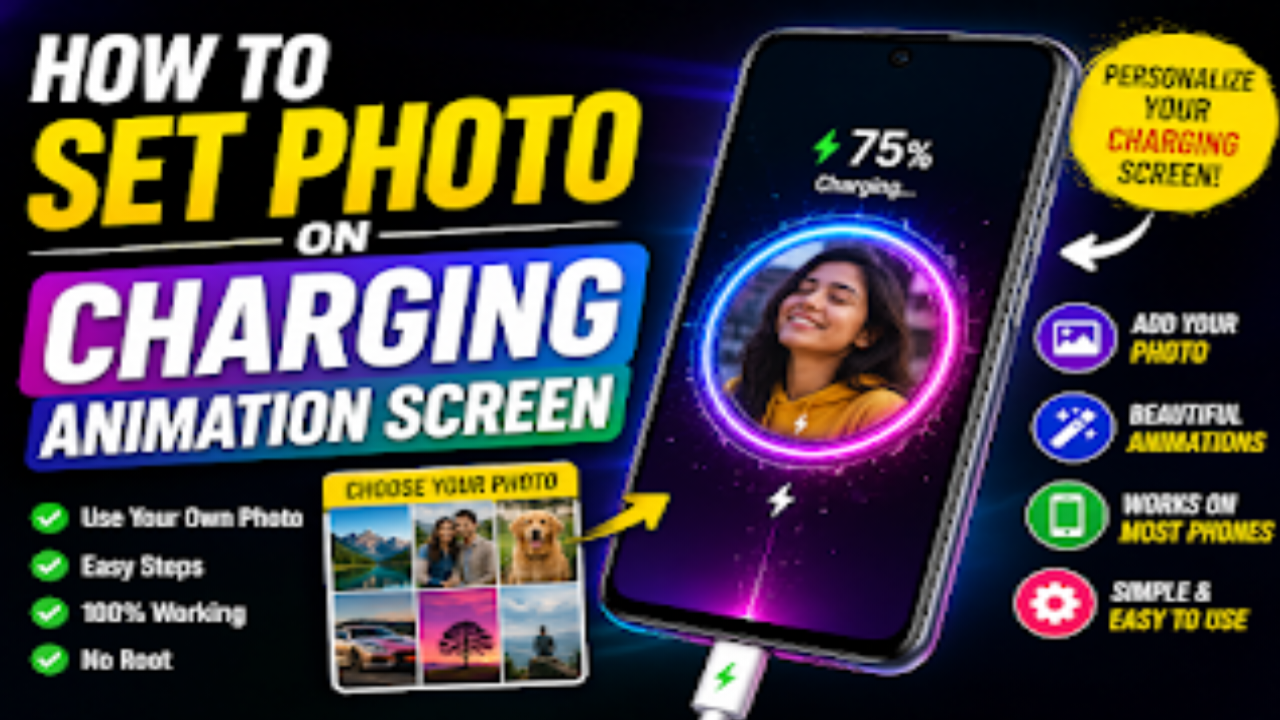
Instead of seeing the same default battery icon every time you plug in your phone, you can use a customized charging animation and, on supported devices or apps, even display your favorite photo while the phone is charging.
You can use a personal picture, family photo, favorite image, logo, GIF, or an animated charging effect. This can give your smartphone a unique and attractive appearance.
In this complete guide, we will explain how to set a photo in charging animation on Android, how charging animation apps work, how to select your own photo, what permissions may be required, and what to do if the charging animation does not work properly.
What Is a Charging Animation?
A charging animation is a visual effect that appears on your smartphone when you connect it to a charger.
Most Android phones display a simple battery icon, charging percentage, or charging notification. However, some smartphones and third-party applications allow you to replace or enhance this standard charging screen with a customized animation.
Depending on the phone and application, you may be able to display:
- Your favorite photo
- A personal picture
- A brand logo
- A GIF
- A battery animation
- A neon charging effect
- A 3D charging animation
- A colorful charging ring
- A custom charging screen
This feature is especially useful for people who enjoy customizing their smartphones and making them look different from standard devices.
Can You Set Your Own Photo as a Charging Animation?
Yes, but the available options depend on your Android phone and its software.
Some smartphone manufacturers provide built-in charging animation or charging screen customization options. Other devices may not include this feature in their system settings.
If your phone does not provide a built-in option, you may be able to use a third-party charging animation application.
However, third-party apps do not always work in exactly the same way on every phone. Android version, phone manufacturer, battery optimization, permissions, and system restrictions can all affect how charging animations work.
Method 1: Use Your Phone’s Built-in Settings
The easiest and safest method is to first check whether your smartphone already has a built-in charging animation feature.
Open the Settings application on your Android phone.
Now look for sections such as Display, Lock Screen, Always-On Display, Themes, Customization, or Battery.
The exact location can be different depending on your smartphone brand and Android version.
If you find an option called Charging Animation, Charging Effect, Charging Screen, or something similar, open it.
You may see several pre-installed charging animations.
Select the animation you like.
If your phone provides a Custom Image, Add Photo, or Gallery option, select it and choose the picture you want to use.
Adjust the image if required and tap Apply or Save.
Finally, connect your phone to a charger and check whether your selected photo or charging animation appears.
Method 2: Use a Charging Animation App
If your smartphone does not have a built-in charging animation feature, you can look for a suitable charging animation application on the Google Play Store.
Open the Google Play Store and search for terms such as:
Charging Animation
or
Charging Animation Lock Screen
You may find different applications offering battery animations, charging effects, animated wallpapers, and customized charging screens.
Before installing an application, check its ratings, reviews, number of downloads, developer information, recent updates, and requested permissions.
It is always better to choose an application from a reputable developer and download it from an official app store.
How Charging Animation Apps Work
Charging animation apps are designed to detect when your phone is connected to a charger and then display a visual effect.
Some apps provide a collection of ready-made animations.
For example, you may find:
Battery Charging Animations
These apps focus on battery-related effects and charging indicators.
Neon Charging Effects
These provide colorful glowing rings, lights, and futuristic charging effects.
3D Charging Animations
These applications may offer three-dimensional battery animations and visual effects.
Photo Charging Animations
Some applications allow users to select an image from their phone and display it during charging.
The exact features vary from one application to another.
How to Set a Photo Using a Charging Animation App
The general process is quite simple.
First, open the Google Play Store on your Android phone.
Search for a trusted charging animation application.
Install the application and open it.
When you open the app for the first time, it may ask for certain permissions. Read each permission carefully before allowing it.
Inside the application, look for options such as Charging Animation, Customize, My Animation, Custom Screen, Photo, or Gallery.
If the application supports custom photos, select the photo option.
Choose a picture from your phone’s Gallery.
After selecting the photo, the application may provide options to adjust its position, size, brightness, or display style.
Make the necessary adjustments.
Now tap Save, Apply, or Set Charging Animation, depending on the application.
Connect your phone to the charger and test the feature.
If the application is compatible with your device and the required permissions are enabled, your selected photo or animation should appear when charging starts.
How to Add Your Own Logo to Charging Animation
You can also use your own logo instead of a personal photo if the application supports custom images.
This can be useful for content creators, businesses, websites, YouTube channels, and personal brands.
First, save your logo to your phone’s Gallery.
Open your charging animation application.
Select the custom image or photo option.
Choose your logo from the Gallery.
Adjust its size and position.
Save the customization and activate the charging animation.
Now connect the charger and check the result.
Your logo may appear on the charging screen whenever the animation is triggered.
How to Use a GIF as a Charging Animation
Some charging animation applications also support GIFs and animated images.
If your application supports GIF files, open the app and look for an option such as GIF Animation, Custom Animation, or Animated Image.
Select the GIF from your phone’s storage or Gallery.
Preview the animation to make sure it works correctly.
If everything looks good, save or apply the animation.
Now connect your phone to the charger and check whether the GIF appears.
Keep in mind that GIF support is not available in every charging animation application.
How to Enable Full-Screen Charging Animation
Some charging animation apps provide a full-screen option.
Open the application’s settings and look for options such as:
Full Screen
Fullscreen Animation
Charging Screen
or
Show Animation on Lock Screen
If the option is available, enable it.
The charging animation may then cover a larger portion of the screen when your phone is connected to a charger.
However, some Android phones restrict apps from displaying content over the lock screen or while the device is locked. Therefore, this feature may not work on every device.
What Permissions Do Charging Animation Apps Need?
Charging animation applications may request special permissions to display their animation when the charger is connected.
For example, some apps may require permission to display over other apps.
This permission can allow an application to show its charging screen on top of other content.
However, you should never automatically approve every permission requested by an application.
Before granting access, read the permission description and decide whether it is actually necessary for the feature you want to use.
For example, a simple charging animation app generally should not need access to unrelated personal information such as contacts or messages.
What to Do If Charging Animation Is Not Working
Sometimes a charging animation app may not work correctly after installation.
There can be several reasons for this.
First, open the application and make sure the charging animation feature is enabled.
Next, check whether all required permissions have been granted.
You can also check your phone’s special app access settings. Depending on your Android version, you may find an option similar to:
Settings > Apps > Special App Access > Display Over Other Apps
The exact menu may be different on your device.
You should also check the battery settings.
Some Android phones aggressively restrict background applications to save battery. If the charging animation app is restricted, it may not be able to trigger the animation correctly.
If your phone provides a battery optimization setting for the application, you can review it and make sure the app is not being unnecessarily restricted.
Why Does Charging Animation Stop After Some Time?
Some phones automatically close background applications to improve battery life.
This can prevent third-party charging animation applications from working consistently.
If the animation works immediately after installation but later stops working, check:
- Battery optimization
- Background activity restrictions
- App permissions
- Auto-start permissions
- Display-over-other-apps permission
- Lock-screen permissions
- Recent app restrictions
The names and locations of these settings vary between Android manufacturers.
Does Charging Animation Drain Battery?
The battery impact depends on the application and how it works.
A simple animation that appears only for a few seconds when you connect the charger will generally use very little additional power.
However, an application that continuously runs in the background or uses complex animated effects may consume more system resources.
For this reason, it is better to use a lightweight and well-optimized application.
If you notice unusual battery drain after installing a charging animation app, check its battery usage and consider disabling or uninstalling it.
How to Choose the Best Photo for Charging Animation
The quality of your selected photo can make a big difference.
For the best result, choose a clear, high-resolution image.
Avoid extremely low-quality pictures because they may look blurry when displayed on a large smartphone screen.
Simple images usually work well.
For example, you can use:
- A clear portrait
- A favorite wallpaper
- A personal logo
- A simple graphic
- A high-quality landscape photo
If your image contains a lot of tiny text or small details, those details may not be easily visible on the charging screen.
Benefits of Custom Charging Animation
There are several reasons why users like customizing their charging screens.
Personalization
You can make your phone feel more personal by displaying an image you like.
Attractive Appearance
A colorful charging animation can make the charging screen look more interesting than the standard battery indicator.
Branding
Content creators and businesses can display their logo or brand image.
Creative Customization
You can experiment with different photos, GIFs, colors, and animation styles.
Easy to Change
If you get bored with one animation, you can usually change it whenever you want.
Disadvantages of Third-Party Charging Animation Apps
Although charging animation apps can be fun, they may also have some disadvantages.
Some applications display advertisements.
Some may use additional battery or system resources.
Certain applications may request permissions that users should carefully review.
Compatibility can also be a problem because an application that works perfectly on one Android phone may not work properly on another.
Android system updates can also affect the functionality of third-party applications.
Therefore, always check the app’s reviews and permissions before using it.
Safety Tips Before Installing a Charging Animation App
Before installing any third-party application, keep the following points in mind.
Always check the application’s rating and reviews.
Read recent user reviews to see whether people are experiencing problems.
Check the developer information.
Review the permissions requested by the app.
Keep your Android system and apps updated.
Avoid installing suspicious APK files from unknown websites.
Use trusted app stores whenever possible.
If an application requests access to information that is unrelated to its main purpose, think carefully before granting that permission.
Frequently Asked Questions
Can I Set My Own Photo as a Charging Animation?
Yes, if your phone or charging animation application supports custom images. You can select a photo from your Gallery and use it as part of the charging screen.
Do I Need an App to Set a Charging Photo?
Not always. Some Android phones have built-in charging animation customization. If your phone does not provide the feature, a compatible third-party application may be required.
Does This Feature Work on Every Android Phone?
No. Charging animation support depends on the smartphone model, Android version, manufacturer software, permissions, and system restrictions.
Can I Use My YouTube or Business Logo?
Yes, if the charging animation app supports custom images. You can select your logo from your Gallery and use it as the charging screen image.
Can I Use a GIF Instead of a Photo?
Some charging animation apps support GIFs and animated images. However, this feature is not available in every application.
Can Charging Animation Be Shown on the Lock Screen?
Some devices and applications support lock-screen charging animations, while others restrict third-party apps from displaying content on the lock screen.
Will Charging Animation Damage My Phone?
A charging animation itself should not damage your phone. However, you should use reputable applications and avoid suspicious software that requests unnecessary permissions.
Does Charging Animation Require Internet Access?
Not necessarily. If the animation is stored locally on your phone, it may not require an internet connection. However, some applications may use internet access for advertisements or downloading online animations.
Can I Remove the Charging Animation Later?
Yes. You can usually disable the feature from the application or return to the default charging animation through your phone’s settings. If a third-party app is responsible for the feature, uninstalling or disabling the app can also remove it.
Why Is My Charging Animation Not Showing?
Check whether the app is enabled, required permissions are granted, battery optimization is not blocking it, and the app is compatible with your Android version. Some phone manufacturers may also restrict third-party charging screens.

Final Thoughts
Setting a photo in a charging animation is a simple and creative way to customize your Android smartphone. Depending on your device, you may be able to use the built-in settings or a third-party charging animation application.
You can choose a favorite photo, personal picture, logo, GIF, or animated charging effect and create a more personalized charging experience.
However, remember that not every Android phone supports the same features. If a particular method does not work, check your phone’s software settings or try a compatible and trusted charging animation application.
Most importantly, pay attention to app permissions, battery usage, compatibility, ratings, and user reviews before installing third-party apps.