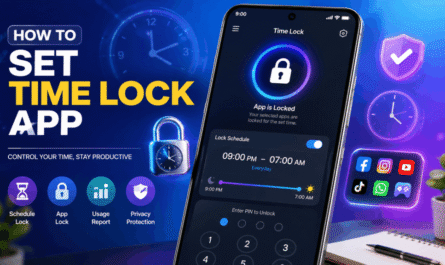
 by
by A picture app lock offers an interesting way to add another access check. Instead of entering a conventional number code, you use selected points on an image as your password.
Imagine opening an app and seeing a familiar photograph. You tap a few locations that you previously selected, and the app opens. The photograph becomes the background for a visual unlocking routine.
This guide explains what a picture app lock is, how to set one up, how to choose sensible touch points, and what to check before trusting it with your privacy. It also covers practical examples, troubleshooting, limitations, and frequently asked questions.
What Is a Picture App Lock App?
A picture app lock is an app locker that uses an image as part of its authentication method. Rather than typing a password into a text box, you interact with particular areas of a photograph.
One Android application using this approach is Picture AppLock: Lock the Apps, listed on Google Play by CFY Apps. Its developer describes an unlocking method that uses three selected touch points on a chosen picture.
Throughout this guide, “picture app lock” refers to the general photo password approach. Exact menus, supported features, and setup screens depend on the application and version you install.
The central idea is straightforward: a picture provides visual landmarks, and your chosen interaction with those landmarks acts as the secret.
How Does a Photo Password Work?
A photo password associates an image with a set of touch locations.
For example, imagine a photograph showing a house, a tree, and a bicycle. Your chosen sequence might involve a small detail on the house, a branch on the tree, and part of the bicycle.
These are only illustrative examples. Your actual password should remain private.
The image itself does not need to be secret for the method to function. What matters is that someone else cannot easily reproduce your chosen touch locations and any required order.
However, a visual password is not automatically stronger than a numerical password. Its usefulness depends on how the app implements authentication, how you configure it, and whether another person can observe your actions.
A Simple Everyday Example
Suppose you lend your unlocked phone to a friend so they can view a restaurant menu.
Without an additional restriction, they might also be able to open other apps. A properly functioning app locker can add an authentication prompt when a protected application is opened.
The purpose is to create an extra privacy boundary during everyday phone sharing. You should still keep your device’s main screen lock enabled.
Why Use a Picture App Lock?
People choose app lockers for different reasons. Some want to limit casual browsing. Others prefer an unlocking method that feels more personal.
1. Add a Check Before Opening Selected Apps
Your phone’s screen lock controls access to the device. An app locker aims to add another check when someone opens particular applications.
This may be useful when you regularly hand your phone to another person while it is already unlocked.
2. Use Visual Landmarks as Memory Aids
Some people find it easier to remember locations in an image than a new numerical code.
A photograph with distinctive details can provide useful memory cues. However, those cues should not make the secret obvious to everyone else.
3. Personalize the Unlocking Experience
A picture password can feel more personal than a standard keypad.
You might prefer a landscape, an illustration, or another image with recognizable details. A neutral image is often a sensible choice because it avoids displaying a sensitive personal photograph whenever the lock screen appears.
4. Make Privacy More Deliberate
Setting up an app locker encourages you to identify which applications actually need extra protection.
For example, you might prioritize email, personal notes, and messaging instead of adding a lock to every application on your phone.
What Makes the Best Picture App Lock App?
There is no single best app locker for every user. A visually appealing lock screen is only one part of the decision.
The best option for your situation should combine dependable behavior, understandable permissions, usable recovery, and clear privacy information.
Reliable Locking
An app locker should consistently request authentication when your chosen settings require it.
Test it during normal use, after restarting your phone, and after switching between applications. A lock that occasionally fails to appear deserves attention before you rely on it.
Clear Permission Explanations
Before granting access, read what the app requests and why.
Depending on its implementation, an app locker may request special Android access. Such requests should have a clear explanation connected to the feature you are enabling.
Do not approve a permission simply because a tutorial tells you to press every “Allow” button.
A Recovery Method You Understand
A forgotten picture password should not leave you guessing about the next step.
Review recovery options during setup. Understand which credentials are required and whether anyone else has access to them.
Comfortable Touch Accuracy
The unlocking method should be precise enough to reject incorrect input while remaining usable for you.
If you frequently miss your own touch points, the configuration may need adjustment.
Transparent Costs
Check whether the application includes advertisements, paid upgrades, or recurring charges.
A free installation does not necessarily mean every feature is free.
A Readable Privacy Policy
Look for an explanation of how the app handles your chosen photo, authentication information, analytics, and advertising data.
A useful policy distinguishes between information used for the lock itself and information processed by other services.
Picture AppLock Features Listed by Its Developer
The Google Play description for Picture AppLock advertises adjustable touch accuracy, an automatic relocking timer, biometric recovery, and uninstall protection. It also labels the application as containing advertisements and in-app purchases.
These are developer-listed features, rather than results of an independent security test. Availability and behavior should be checked in the version installed on your device.
When assessing any of these features, focus on practical behavior. For example, an automatic relocking option is valuable only if it reliably matches the privacy settings you selected.
How to Set Up a Picture App Lock on Android
The following is a general setup guide. Button names and the order of screens may differ.
Step 1: Find the Correct Application
Search for the application on Google Play and check its full name and developer.
Similarly named apps may come from unrelated publishers. Verify the listing before installing.
For the application discussed here, use the official Picture AppLock Google Play listing.
Step 2: Read the Listing Before Installation
Review the description, recent feedback, privacy information, and purchase details.
Pay particular attention to comments about reliability on devices similar to yours. Individual reviews are not conclusive, but recurring complaints can help you identify issues to test.
Step 3: Open the App and Review Setup Instructions
Read each setup screen carefully.
Avoid rushing through requests for special access. If an explanation is unclear, pause and check the developer’s support information.
Step 4: Choose an Appropriate Picture
Pick an image with several distinct details.
A good starting image should be:
- Clear at your phone’s screen size.
- Easy for you to recognize.
- Rich enough in detail to offer multiple possible touch locations.
- Suitable for other people to see on a lock screen.
Avoid images containing identity documents, confidential records, or private information.
Step 5: Create Your Picture Password
Follow the app’s instructions to select and confirm your touch points.
Practice entering the password several times. You should be able to repeat it comfortably without relying on a visible note.
Do not demonstrate your real sequence while recording a tutorial or showing the app to friends.
Step 6: Configure Recovery
Set up the recovery method available in your installed version.
Make sure you understand what happens if you forget the picture password. Recovery should be secure as well as convenient.
Step 7: Select the Apps You Want to Protect
Start with a small number of applications.
For example, you could begin with personal notes and email, then expand the list once you have verified that locking works reliably.
Step 8: Review Relocking Behavior
Decide when a protected application should require authentication again.
A short relocking interval may suit frequent phone sharing. A longer interval may feel more convenient when you repeatedly switch between apps.
Choose the setting that matches how you use your phone.
Step 9: Test the Complete Setup
Close a protected application and reopen it.
Then repeat the test after locking your screen, restarting the phone, and using other applications for a while.
Confirm that correct input works and incorrect input is rejected.
How to Choose Better Picture Password Touch Points
The picture is only part of the setup. Your choice of touch points matters too.
Avoid an Obvious Sequence
A photograph may contain several features that naturally attract attention.
If you choose only the most prominent objects in a predictable order, another person may have an easier time guessing your choices.
Prefer a sequence that is memorable to you without being immediately apparent to others.
Use Stable Visual Details
Choose features you can locate consistently.
Very faint details or crowded areas may be difficult to tap accurately, especially in bright light or when you are in a hurry.
Keep Your Hands and Screen Private
A person watching closely may learn where you tap.
Treat a picture password as confidential input. Avoid entering it where someone can comfortably observe or record your screen and hand movements.
Balance Precision With Usability
Greater precision is not always practical.
A configuration that repeatedly rejects your own attempts can encourage careless habits or cause you to disable the feature entirely. Aim for a setting you can use consistently.
Change a Sequence That Has Been Exposed
If you reveal your password in a screen recording, live demonstration, or conversation, create a new one.
Changing only the background image may not be enough if the same touch arrangement remains in use.
Practical Uses for a Picture App Lock
Protecting Personal Conversations During Phone Sharing
You might lend your phone to a relative for a call while wanting your messages to stay private.
An additional app authentication prompt may help limit casual access, provided you have tested that it appears reliably.
Limiting Casual Access to Your Gallery
A gallery lock can add a check before that particular gallery application opens.
However, consider whether the same photographs remain accessible through a file manager, cloud storage app, or another photo viewer.
Keeping Personal Notes Less Accessible
Notes may include diary entries, plans, or private reminders.
An app locker can be one part of protecting them. For important credentials, use a suitable password manager instead of keeping passwords in ordinary notes.
Separating Work and Personal Use
If you use a personal phone for work, you may want extra restrictions around work email or documents.
Follow your organization’s device policies. An app locker should not replace required workplace security tools.
Picture App Lock vs PIN, Pattern, and Fingerprint
Different authentication methods offer different experiences.
| Method | How it works | Practical consideration |
|---|---|---|
| Picture password | You interact with selected image locations | Requires consistent tapping and protection from observation |
| PIN | You enter a numerical code | Easy to enter, but weak or exposed codes are a concern |
| Pattern | You connect points in a sequence | Convenient for some users, but visible movements may be observed |
| Fingerprint | A sensor checks an enrolled fingerprint | Convenient where supported; fallback credentials still matter |
| Device password | You enter a text password | Can support a stronger secret, but may take longer to type |
This is a comparison of interaction methods, not a ranking of every implementation.
A well-configured built-in security feature may be a better choice than a poorly functioning third-party locker, regardless of how attractive the unlocking screen looks.
Is a Picture App Lock Safe?
A picture app lock may help with everyday privacy, but it should not be described as unbreakable.
Consider three separate questions:
- Does the lock appear reliably?
- Can another person disable or work around it?
- Does the app handle your information responsibly?
A positive answer to one question does not automatically answer the others.
App Locking Does Not Automatically Mean File Encryption
Putting an authentication screen in front of an application is different from encrypting its files.
Unless the developer clearly documents encryption for the relevant data, do not assume that locking an app encrypts everything it contains.
Notifications May Still Reveal Information
Even when an application is locked, message previews or other notification content may remain visible, depending on your settings.
Review notification privacy separately.
Other Copies Need Separate Attention
Locking a gallery application does not necessarily restrict copies stored elsewhere.
Think about shared folders, cloud accounts, downloaded attachments, and other applications that can access the same content.
Keep Your Main Screen Lock Enabled
An app locker adds another layer to your setup. Your device’s screen lock remains essential.
Use a device credential you can remember and keep private.
Does Picture AppLock Collect Data?
The developer’s privacy policy states that selected lock photos and core security information remain on the device. It also describes analytics, crash reporting, purchase validation, and advertising services that process other information, including device details or identifiers.
That distinction matters: a statement about locally stored lock photos does not mean the application processes no other data. These are the developer’s disclosures, rather than an independent audit.
Before installing, review both the current privacy policy and the Google Play Data safety section. Decide whether the disclosed practices are acceptable for your intended use.
Common Picture App Lock Problems and Possible Fixes
The Lock Screen Does Not Appear
First, confirm that the target application is still selected for protection.
Next, check the locker’s setup status and any warnings it displays. Review whether required access has changed, and test again after restarting your phone.
If protection remains inconsistent, do not rely on it for sensitive applications.
Your Correct Touch Points Are Rejected
Check whether you are using the expected sequence and tapping the intended locations.
If available, review touch accuracy settings. You may also find that a clearer picture makes the password easier to repeat.
The App Stops Working After Some Time
Review the developer’s troubleshooting instructions and your phone’s background activity settings.
Change only settings you understand, then test the result. Do not assume a single adjustment permanently resolves the issue.
You Forgot the Picture Password
Use the application’s documented recovery process.
Avoid experimenting with deletion or data clearing before understanding the consequences, particularly if the app also includes any separate storage features.
Notifications Still Show Private Messages
Open your phone’s notification settings and the relevant messaging application’s privacy options.
Adjust previews independently of the app locker.
The App Feels Slow or Intrusive
Review how many applications you have protected and whether your relocking interval fits your routine.
If the app repeatedly interrupts normal use, compare it with your device’s built-in options.
Built-In Android Privacy Alternatives
Before installing another application, check what your phone already offers.
On supported Android devices, Private Space provides a separate area for sensitive apps and can use its own authentication. Compatibility and setup depend on the device and software configuration. Google also recommends considering a separate Google Account when stronger separation of account data is important.
Search your phone’s settings for available privacy and app protection features. Compare their behavior with the third-party option you are considering.
Mistakes to Avoid When Using a Photo Password App
Choosing an Image Only for Appearance
A beautiful image may still be difficult to use.
Prioritize distinct details and comfortable tapping.
Revealing Your Real Password in a Tutorial
If you create tech videos, use a demonstration image and a temporary sequence.
Change the sequence before using the app privately.
Locking Too Many Apps Immediately
Start small, test reliability, and expand protection deliberately.
This makes it easier to identify problems and decide where additional authentication is useful.
Assuming a Hidden-Looking Screen Guarantees Security
An unfamiliar interface may confuse a casual observer, but appearance alone does not establish security.
Judge the application by its behavior and documented protections.
Ignoring Recovery Settings
Know how recovery works before you need it.
Also consider whether someone else could use the same recovery method.

Conclusion
Choose your touch points carefully, test the lock in everyday conditions, and review notifications and other routes to the same information. Combined with a secure device screen lock and sensible privacy settings, an app locker may provide a useful extra boundary when sharing your phone.
Frequently Asked Questions
What is a picture app lock?
A picture app lock uses selected locations on an image as part of the process for unlocking protected applications.
How do I lock apps with a photo?
Install a suitable photo password app, review its setup instructions, choose an image, create the required touch sequence, and select the applications you want to protect. Exact steps vary.
Is a picture password better than a PIN?
Not automatically. Security depends on the implementation, your chosen secret, observation risks, and how reliably the app enforces authentication.
Can someone learn my picture password by watching me?
Yes. Someone who observes or records your actions may learn the touch locations. Keep the sequence private.
Can I use my own photograph?
Use the image options supported by your chosen application. Avoid confidential pictures because the image may appear whenever the lock screen is displayed.
Does locking my gallery hide every photo?
No. Other applications, cloud services, or file locations may still provide access to the same pictures.
Can an app locker protect messaging applications?
Check whether your chosen locker supports the application you want to protect, then test it. Notification previews need separate attention.
Will an app locker stop online account hacking?
An app opening restriction does not replace account security. Use strong, unique account passwords and additional account authentication where available.
What should I do if I forget my photo password?
Follow the developer’s recovery instructions. Review and configure recovery during initial setup.
Should I keep my phone’s normal screen lock?
Yes. Keep your main device screen lock enabled even when using an app locker.
Does a picture app lock encrypt my files?
Do not assume so. App access restrictions and file encryption are different protections.
How can I decide whether an app locker is reliable?
Test protected applications after closing them, switching apps, locking the screen, and restarting the phone. Recheck after significant updates or settings changes.
Is Picture AppLock the best app locker for everyone?
There is no universal best choice. Device compatibility, reliability, accessibility needs, privacy preferences, and built-in alternatives all affect the decision.
SEO Keywords
Primary keyword: Picture App Lock App
Secondary Keywords
- Picture AppLock
- Photo password app
- Picture password app for Android
- Photo PIN app lock
- App lock with photo password
- Android app privacy
- Lock apps with a picture
Long-Tail Keywords
- How to use Picture App Lock
- How to lock Android apps with a photo
- How to create a picture password
- Best picture app lock for Android
- Picture App Lock setup guide
- Picture password vs PIN lock
- How to choose photo password touch points
- Picture App Lock not working
- How to protect apps when sharing your phone
Use these phrases where they naturally fit the article. Avoid repeatedly inserting keywords into sentences that are already clear.